In the reports tab [€], you'll find an overview of all lab slips.
From the lab slips report, you can both add a new lab slip with [Add lab slip] and use [Advanced search], just as in every report.
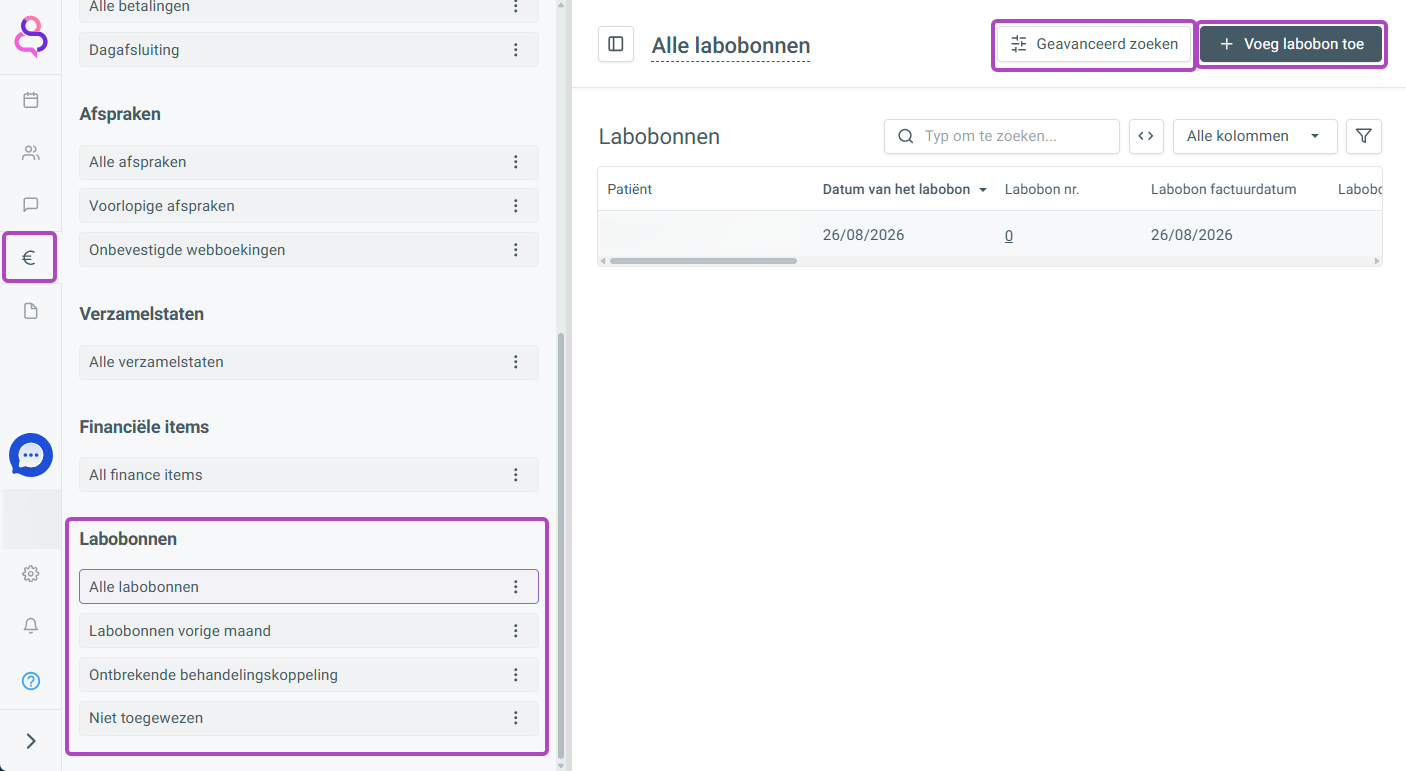
You can find out how to add a lab slip here.
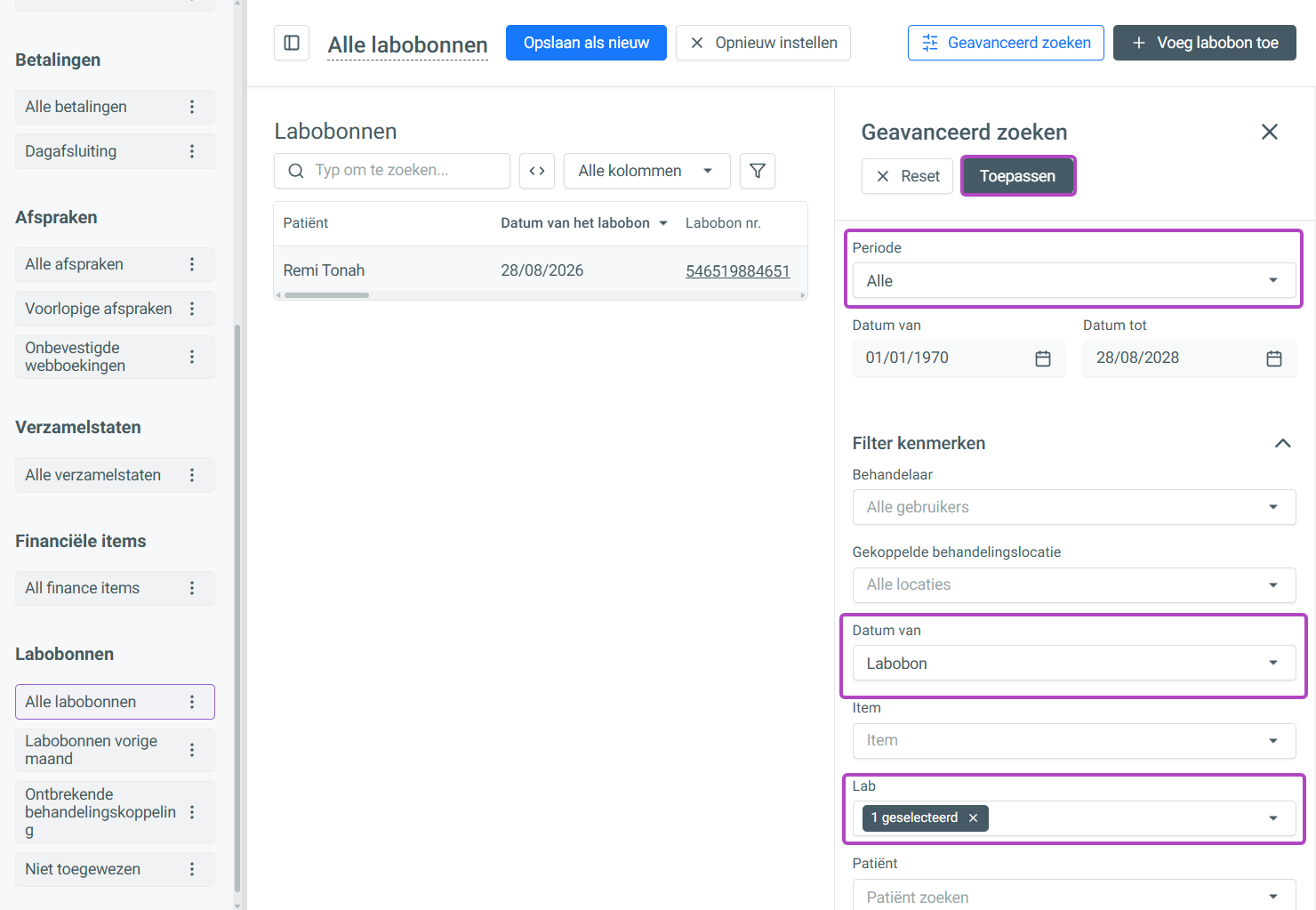
To do an advanced search and generate your own personalised report from it, choose [Advanced search] at the top right.
A pop-up opens on the right with various filters/search criteria. Select or deselect the data you need and click [Apply].
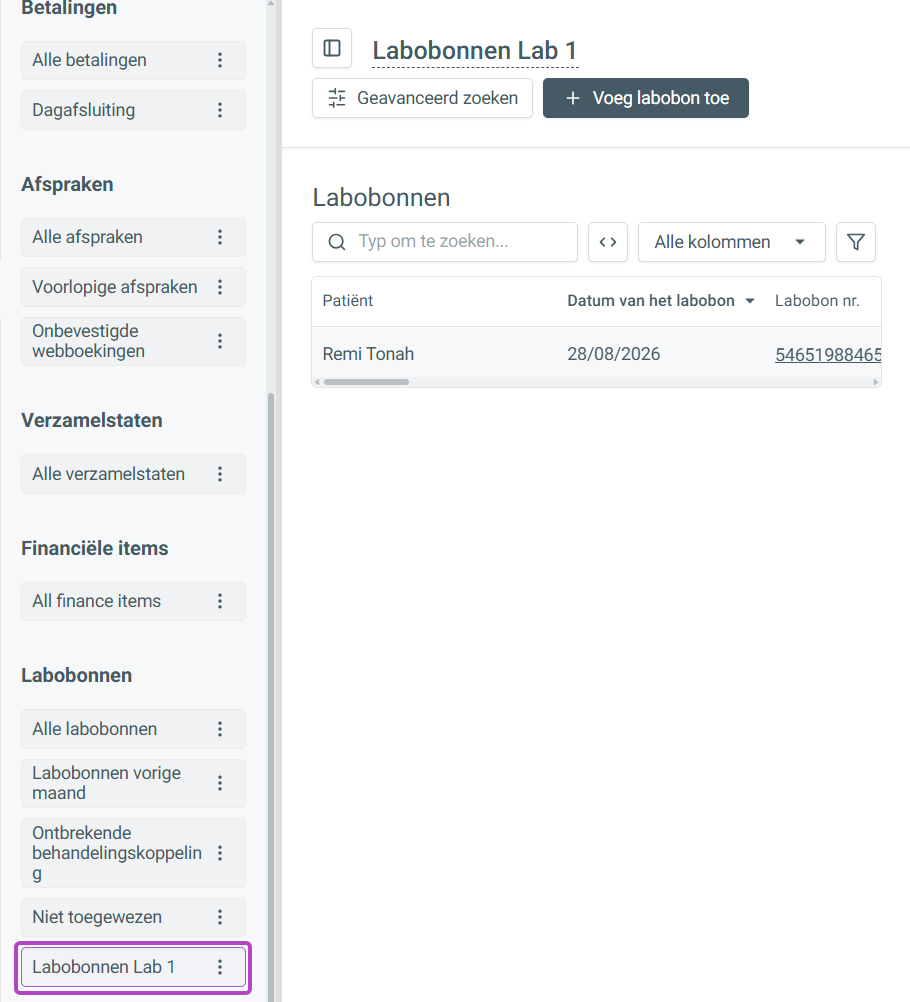
(In this example, a report is generated of all lab slips from one specific lab.)
Give this report a name of your own and save it as your own personalised report, so you can always open it with just one click.
Click the text [All lab slips] and choose your own name (in this example, [Lab slips Lab 1]). Then click [Save as new].
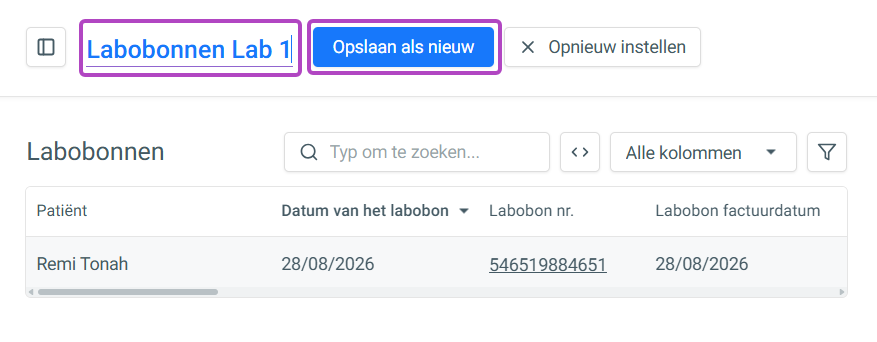
The report can now be opened at the bottom of the [Lab slips] section.
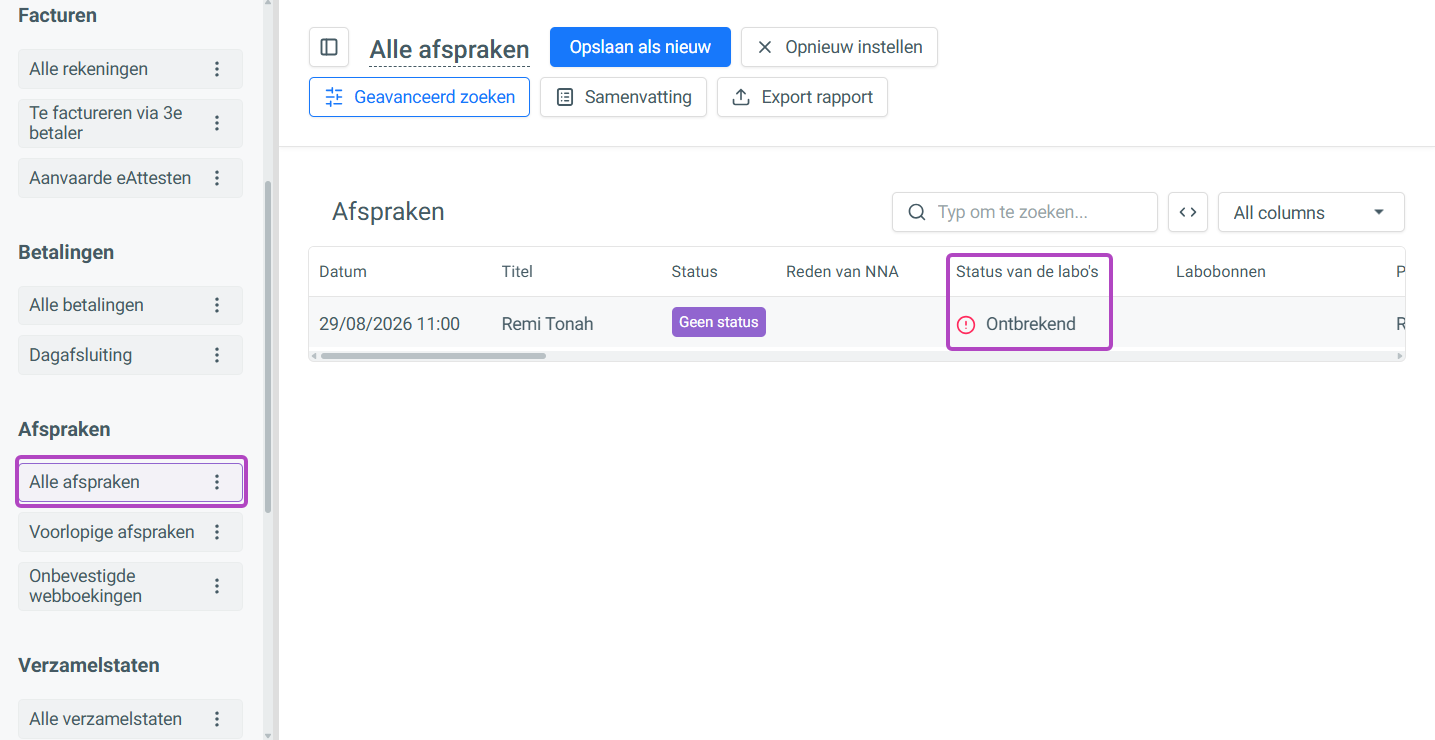
You can also check the status of lab slips in the [Treatments], [Appointments] and [Finance items] reports.