Go to [Settings] > [Automation].
At the top, choose between the personal settings and the practice settings. The practice settings affect all users in the practice. Configure the automatic confirmation email at practice level so that it is also sent for appointments scheduled by other staff members. A configuration at personal level only does not activate these confirmation emails for appointments scheduled by other staff members.
Click the downward arrow [∨] next to the desired action to change it. In the simple view, select the template to use for this action, or click [👁 Advanced] for more options.
Click [Edit configuration] to change the settings, or click [+] at the top right to create a new configuration.
Here you change the location and the recipient. Click Custom at the bottom to set this up for specific appointment types. Click [Save] to confirm.
By default, the recipient is set to Patient, so the patient receives an email when this action is carried out. You can also set the appointment author as the recipient to set up notifications for yourself or other users. Birthday emails can only be enabled in the backend. You cannot configure this yourself; contact support to request it for your account.
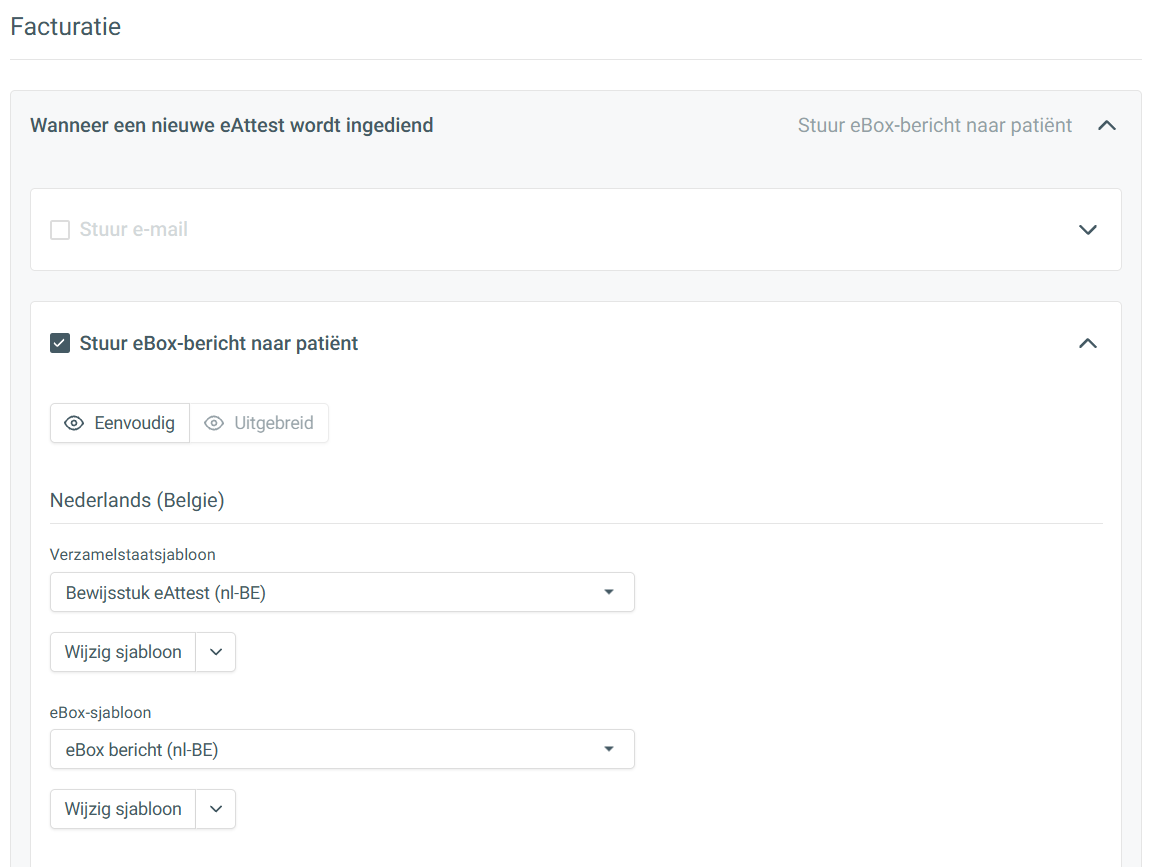
In the email automation settings, you also set up the automation for sending the proof of payment after an eAttest has been approved.
Check the ‘Send eBox message’ to patient box and, if needed, choose the templates under the languages at the bottom, both for the proof and for the content of the accompanying eBox message.