
Tip for our Belgian users: when you use the eID reader, the eID details are filled in automatically in the record. See also: Reading the eID
Opening the patient details
Click an appointment in the diary and open the patient details with the [♙▤] icon, or look up the patient via the magnifying glass at the top right. This button is shown in several places in Crossuite, e.g. in the reports or in the patient view.
Editing the patient details
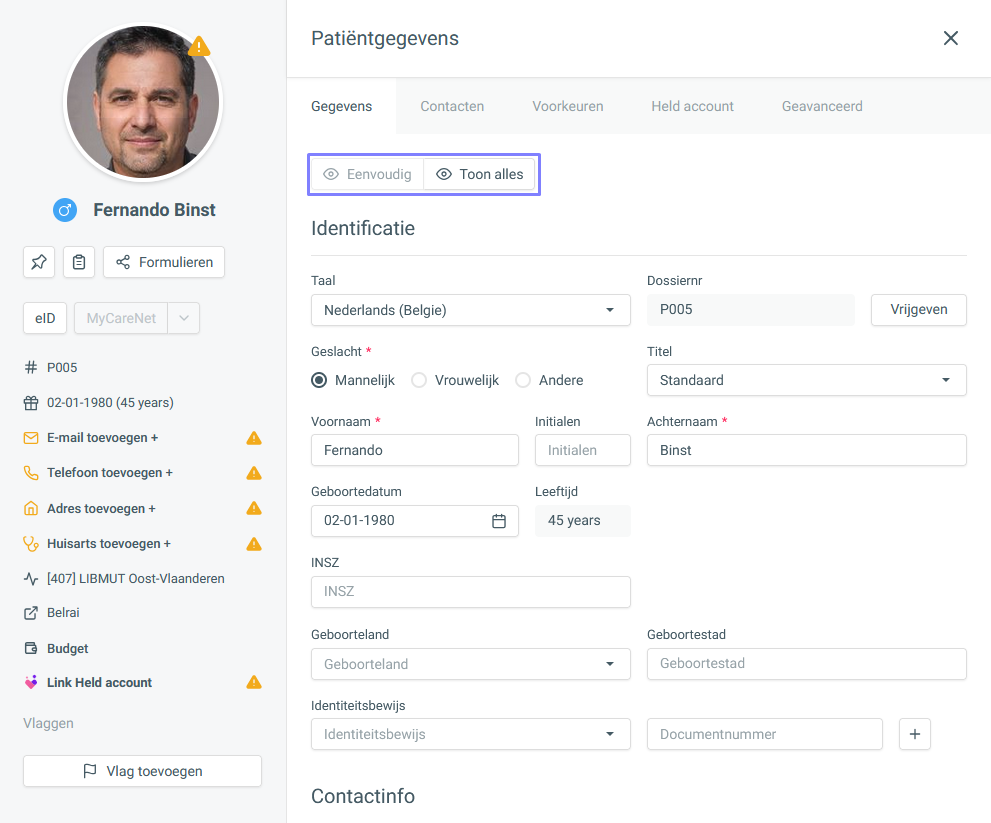
The patient details open on the right.
Details shows the patient's basic details.
Contacts is used for links with external parties (e.g. doctors, insurers or family members).
See also: Adding a contactPreferences is used to change certain settings for this patient only (e.g. default payment method, invoice recipient, enabling or disabling the appointment reminder).
Via the Held account, you manage the link with the Held patient app.
See also: Linking a patient to the Held appAdvanced contains extra options (setting the patient to active or inactive, deleting or forgetting the record (GDPR)).
See also: Setting a patient to inactive / deleted after a request / death
Some important fields are shown below the profile picture; fields that are not filled in are marked with [⚠]. Click the fields to fill them in, or click [the eye icon 👁] to show all available fields.
Changes to the patient details are saved automatically.