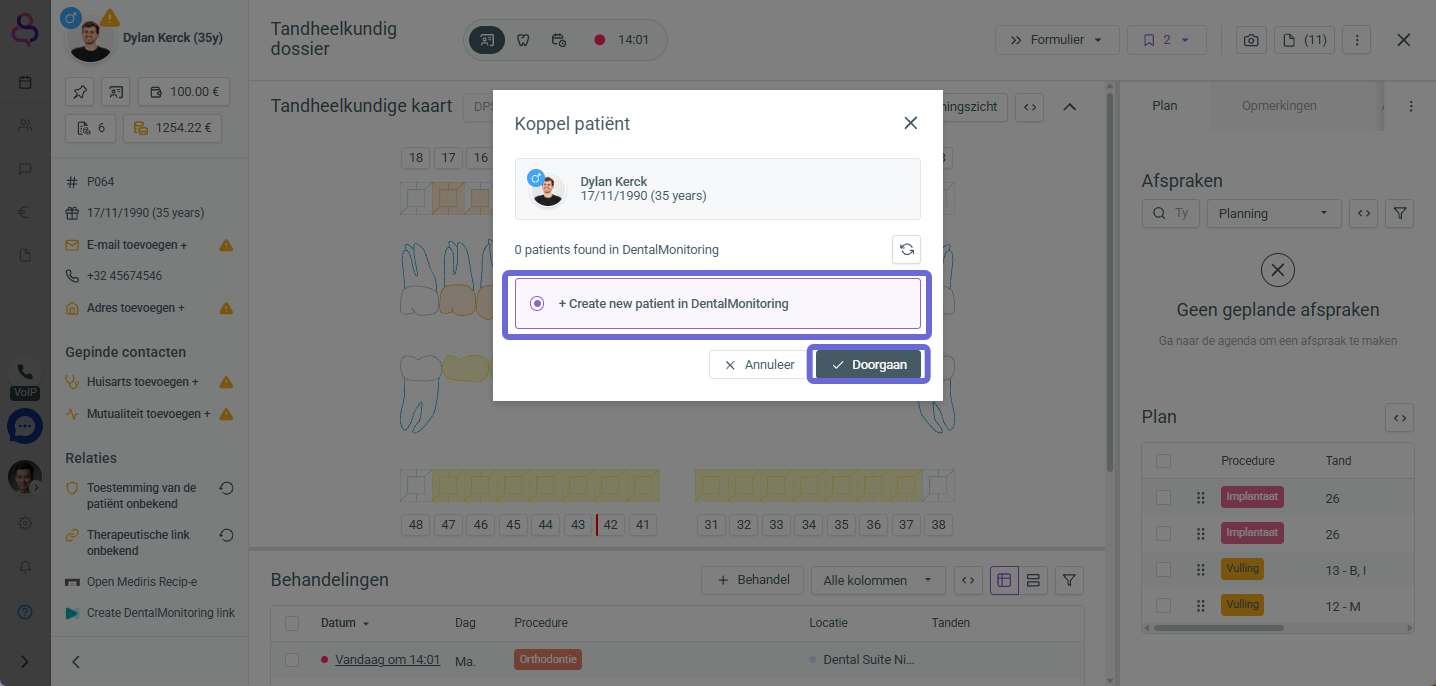
Log in to DentalMonitoring and then select ‘My Account’ in the top-right corner.
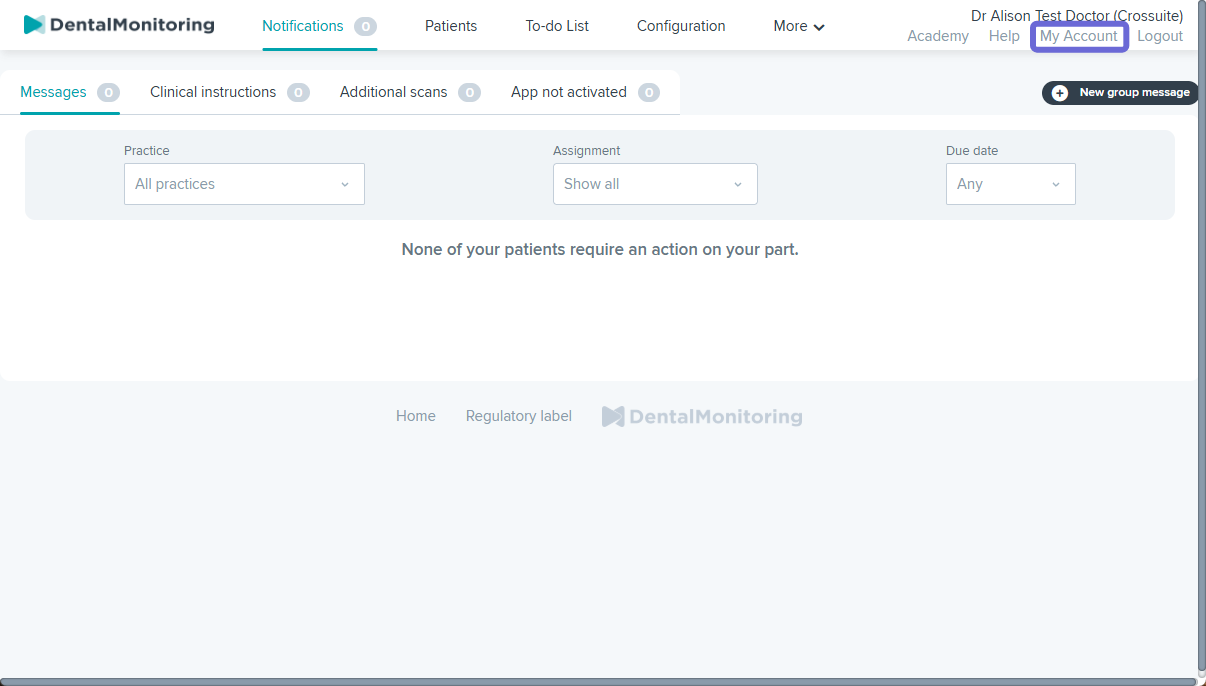
Under the ‘Personal information’ tab, you’ll find ‘API settings’ at the bottom.
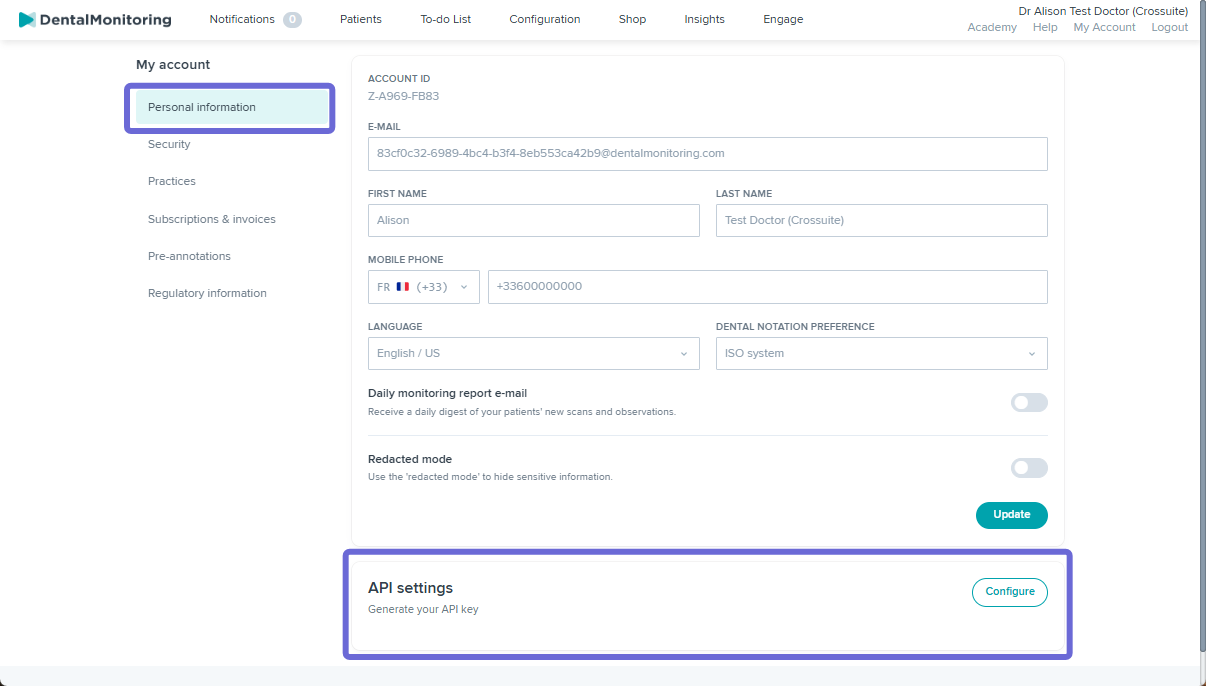
After you click ‘Configure’, your API key will appear.
You can then copy it to your clipboard after confirming with your password in the pop-up window that appears.
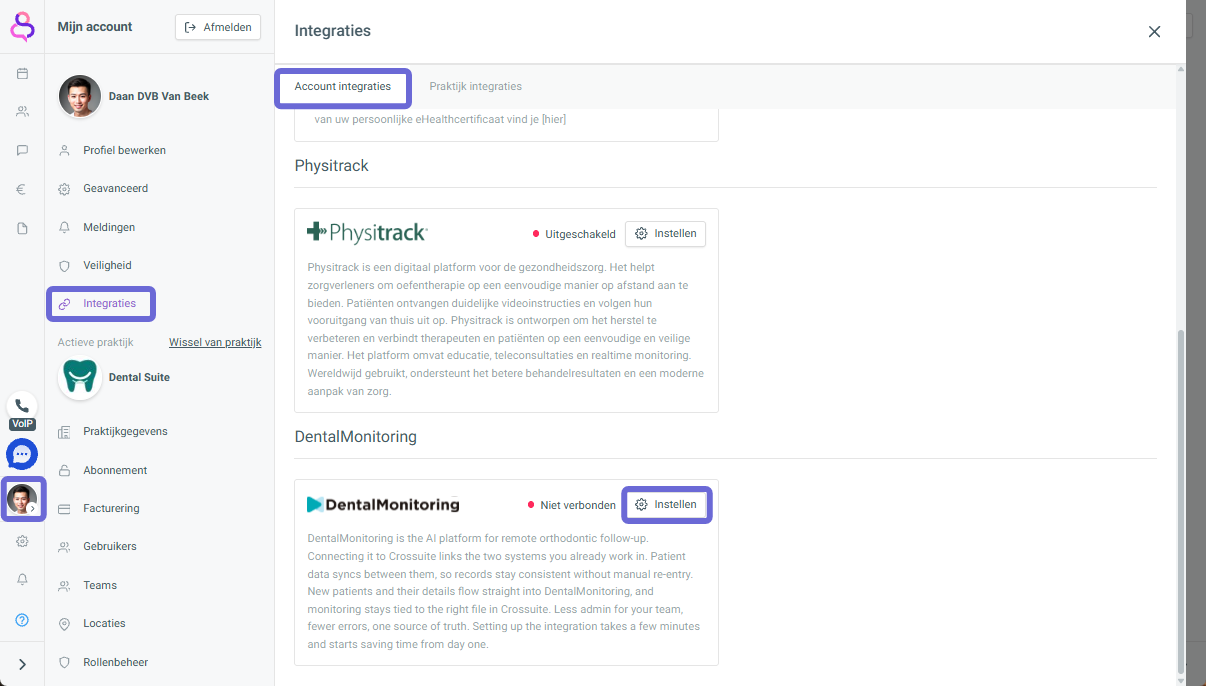
Next, open ‘My profile’ in Crossuite and navigate to ‘Integrations’.
Under the ‘Personal integrations’ tab, you can find ‘DentalMonitoring’ at the bottom. Select ‘Set up’.
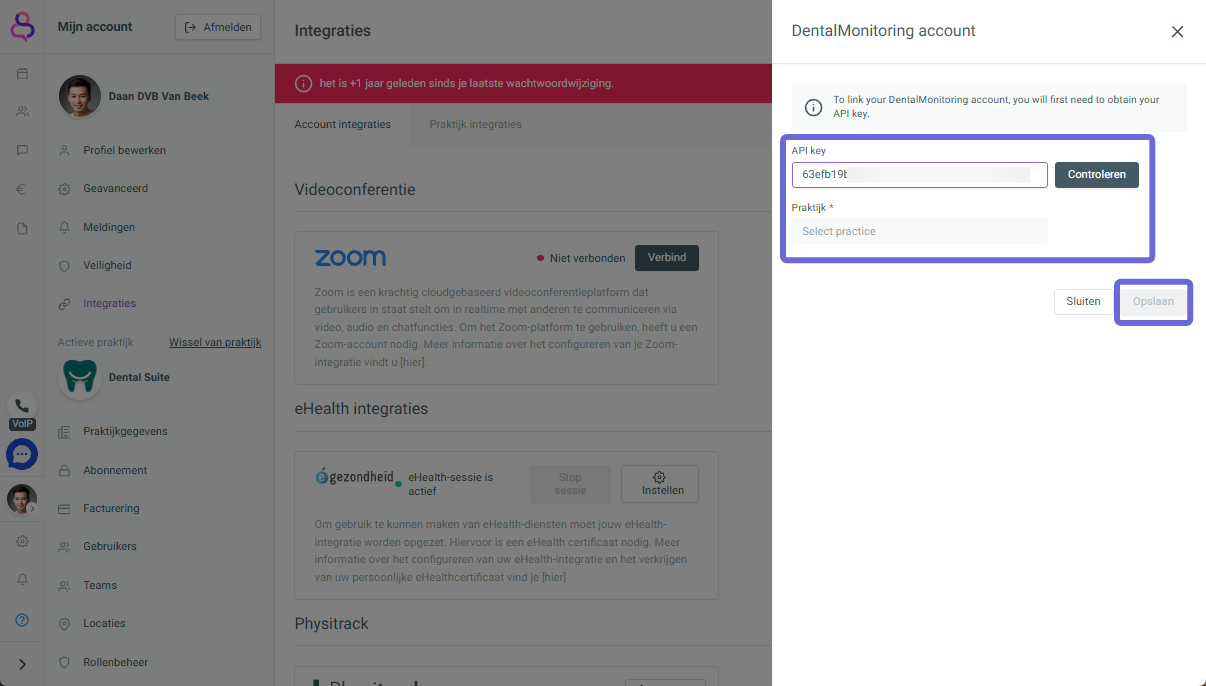
Then enter the copied API key (to perform the check) and, if applicable, select the correct practice.
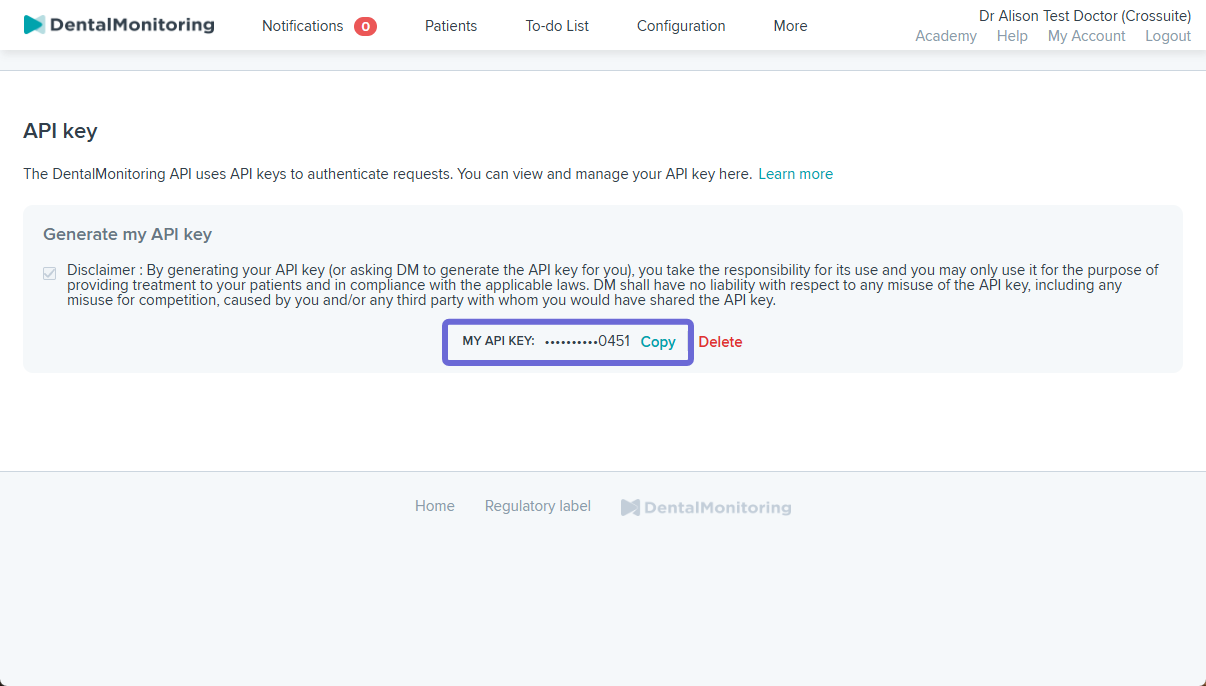
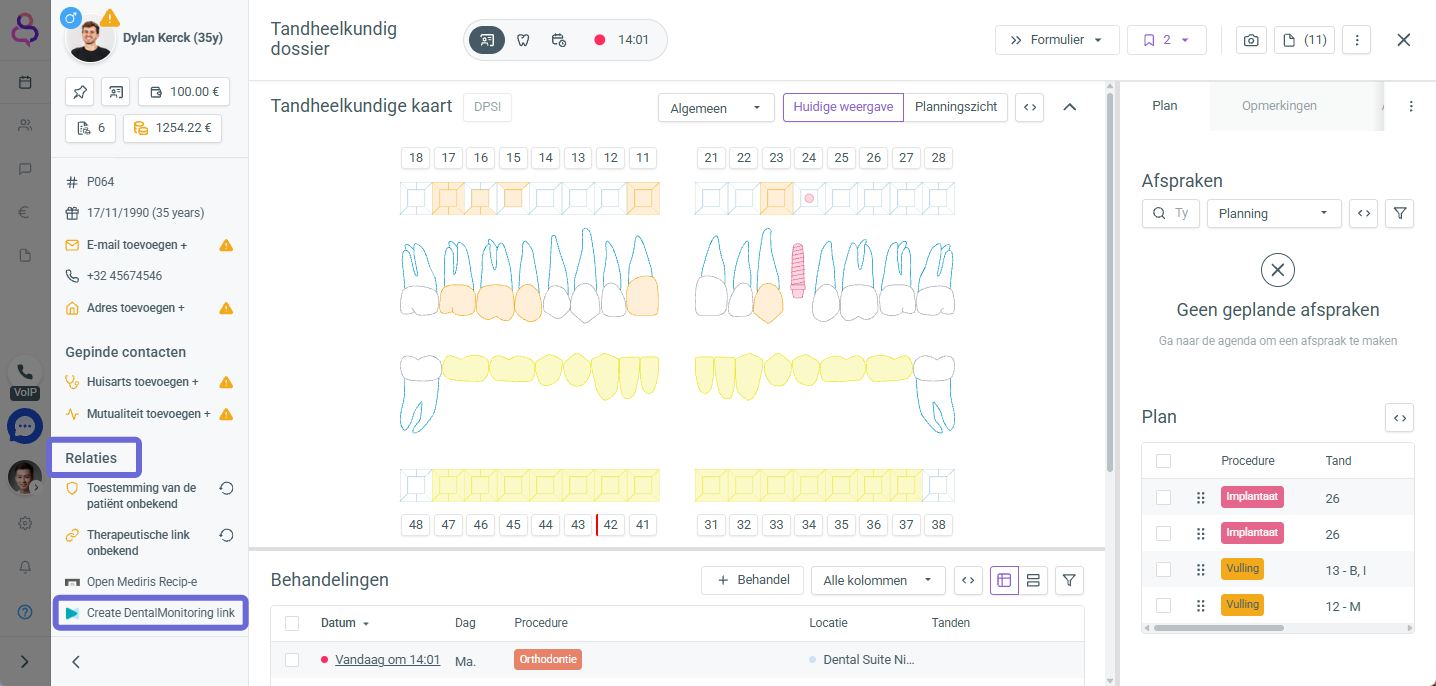
In your patient details and patient file, under the Relationships tab, you will now find ‘Create a DentalMonitoring link’.
A pop-up opens with a possible suggestion of an existing patient, or you create a new patient from Crossuite.