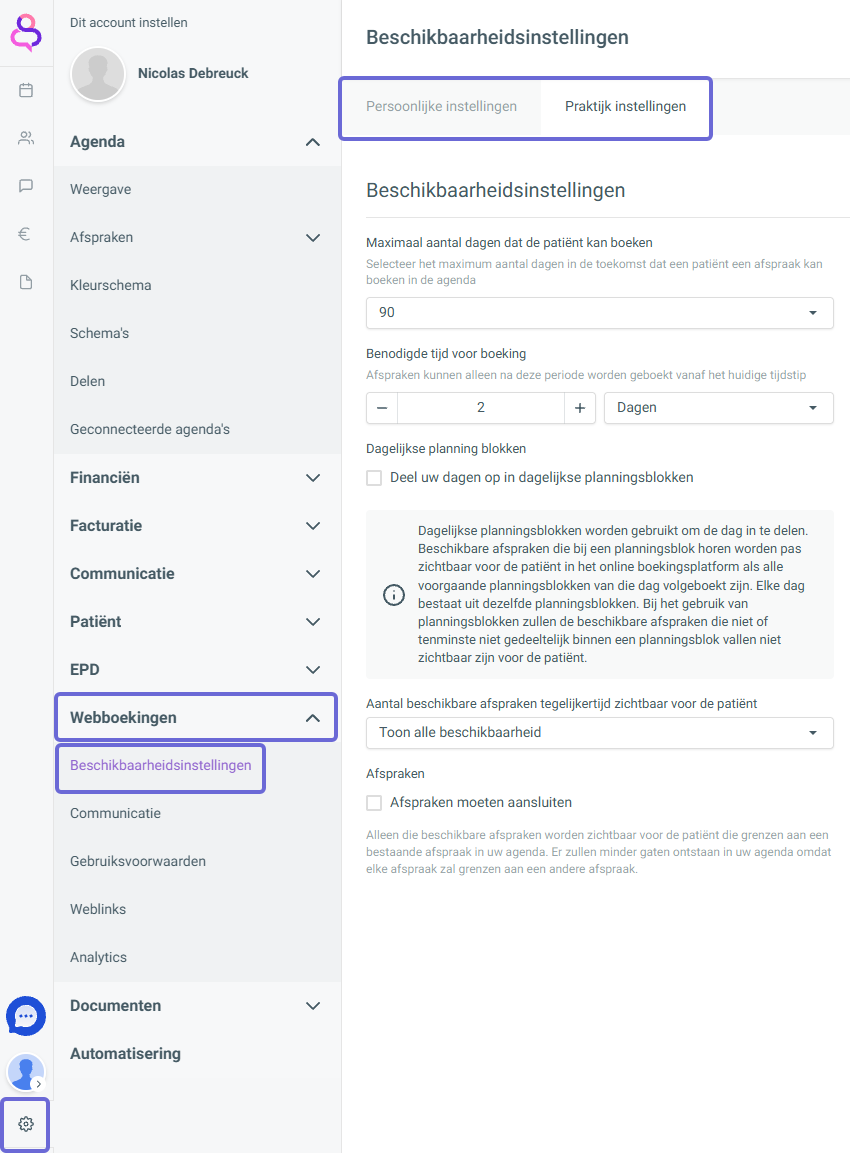
In your settings, under the ‘Webbookings’ tab, the ‘Availability settings’ open first.
At the top, you can immediately choose whether to apply these settings at personal or practice level.
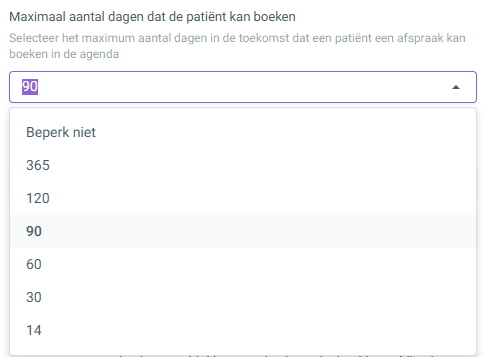
Specify how far into the future patients can book an appointment. Choose a preset number of days from the list, or type the desired number in the field yourself. Do you want patients to book without restrictions? Then select the ‘Do not limit’ option.
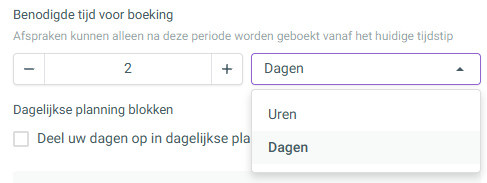
Specify the minimum time that must pass between booking the appointment and the time of the consultation. Appointments can only be booked after this period, counted from the moment of booking. Adjust the time with the plus and minus buttons (or type the number directly) and select ‘Hours’ or ‘Days’ in the dropdown.
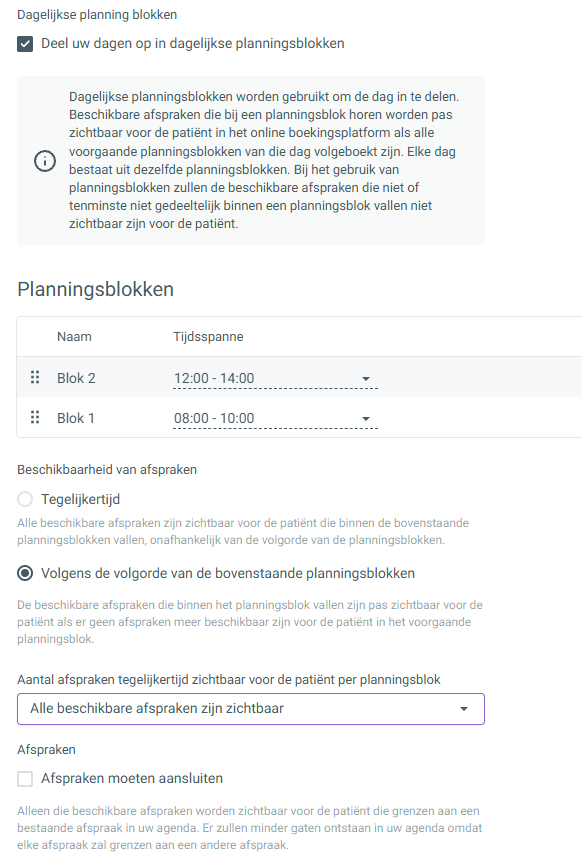
Check the option to divide your days into daily planning blocks to split the working day into fixed time periods. Please note: once this feature is enabled, patients can only book appointments online that fall within a configured block. Times outside these blocks are not shown. The chosen blocks apply to every day by default.
Click the plus sign (+) at the top right to add a new block. Give the block a name and choose the desired start and end time under Time range in the dropdown menu. Use the dotted icon on the left to drag the blocks into a different order. To delete a block, use the red bin icon on the right.
Under ‘Availability of appointments’, you choose how the blocks are released to patients:
Choose ‘Simultaneously’ if all available appointments in all blocks should be visible right away, regardless of the order.
Choose ‘According to the order of the planning blocks above’ if appointments in the next block should only become visible once the previous block is fully booked.
With the setting for the number of appointments visible to the patient at the same time per planning block, you determine how many bookable times are shown. Leave it on ‘All available appointments are visible’ to show all free spots, or choose an exact number to limit what is offered per block.
Check the option ‘Appointments should connect’ to avoid empty gaps in the diary. Patients then only see free appointments that come directly before or after an existing appointment. This way the diary fills up compactly.