Before you can link the approval, the patient consent (informed consent) and therapeutic link must first be registered for the patient. You can do this via this guide.
To use eAttest or eFact for patients who already have an approval, you need to link the current approval to an eAgreement.
In the EPR, click [Consult approvals] at the top right to load all active approvals of the patient.
In the list of approvals, select in the first column the period to which you want to link the approval.
Because this approval is now correctly linked to the period, you will also find an approved eAgreement in the period. This means that everyone in the practice can invoice digitally for this period.
Check whether you have created a therapeutic link with the patient. It is required to retrieve existing approvals.
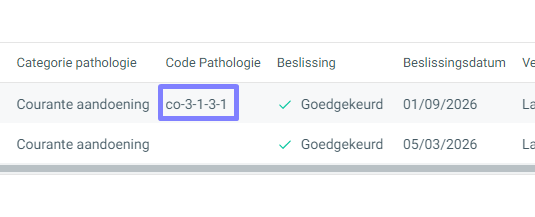
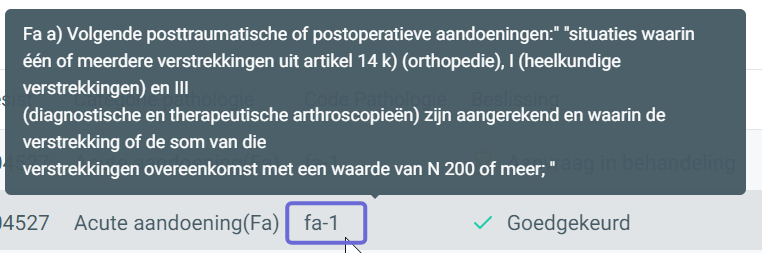
Check whether the “pathology code” you see in the approvals exactly matches the period in your EPR. For example, if code E-h-2 is in the list but the E pathology in your own period is set to e-1, you still need to change the pathology in your period.
Hover over the code with your mouse to find out which pathology you need to select in your period to make the correct link:
You can unlink a period via “Consult approvals”. Click the period details (counter, category, start and end date) and link the existing approval to “External period”. You can then link your period to another existing approval or request an eAgreement for the period.
The “Consult approvals” panel shows all of the patient's approvals, not just your own.
Do you get an error message? See the article Handling eAgreement error messages for a list of all possible error messages, or ask Crossy via the blue chat icon at the bottom left of your Crossuite.
