---
title: "Update mouth status"
description: "This article shows how to update the mouth status in the EDR."
url: https://helpcentrum.crossuite.app/en/articles/150-update-mouth-status
collection: "General"
updated: 2026-11-10
language: en
alternates: [nl, fr]
---

# Update mouth status

This article shows how to update the mouth status in the EDR.

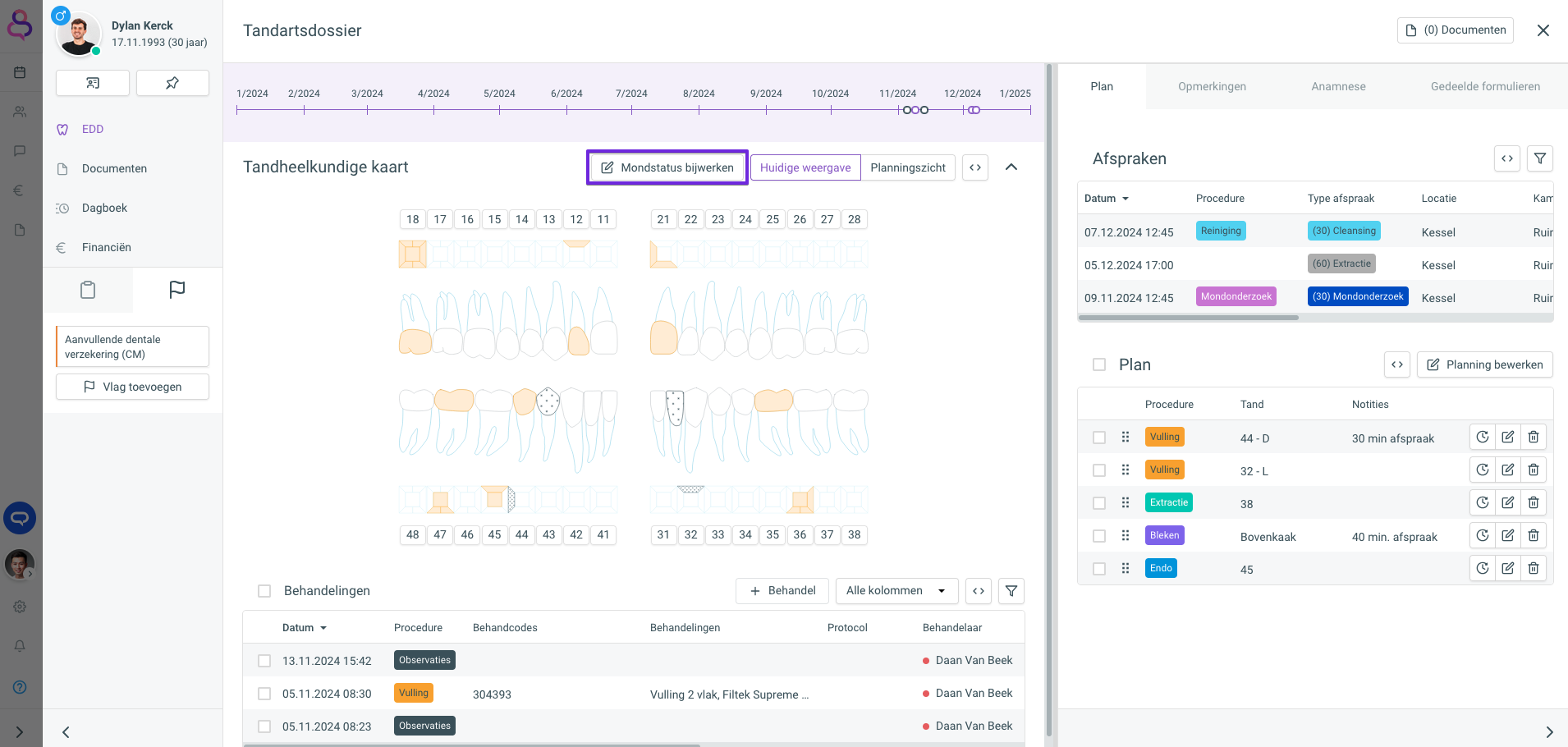
Click the **\[🖉 Update mouth status\]** button to bring the patient's mouth status up to date.
![](https://knowledgebase.crossuite.app/galleryDocuments/edbsn5a3a949ff8c2e22950b215c993784b9f1a47ada1d9f486757c75924a5a360c9a3b2b45e7410984a71b7b0c1625f633840b0bfc427210b7fd652f43f27a82ee80?inline=true)

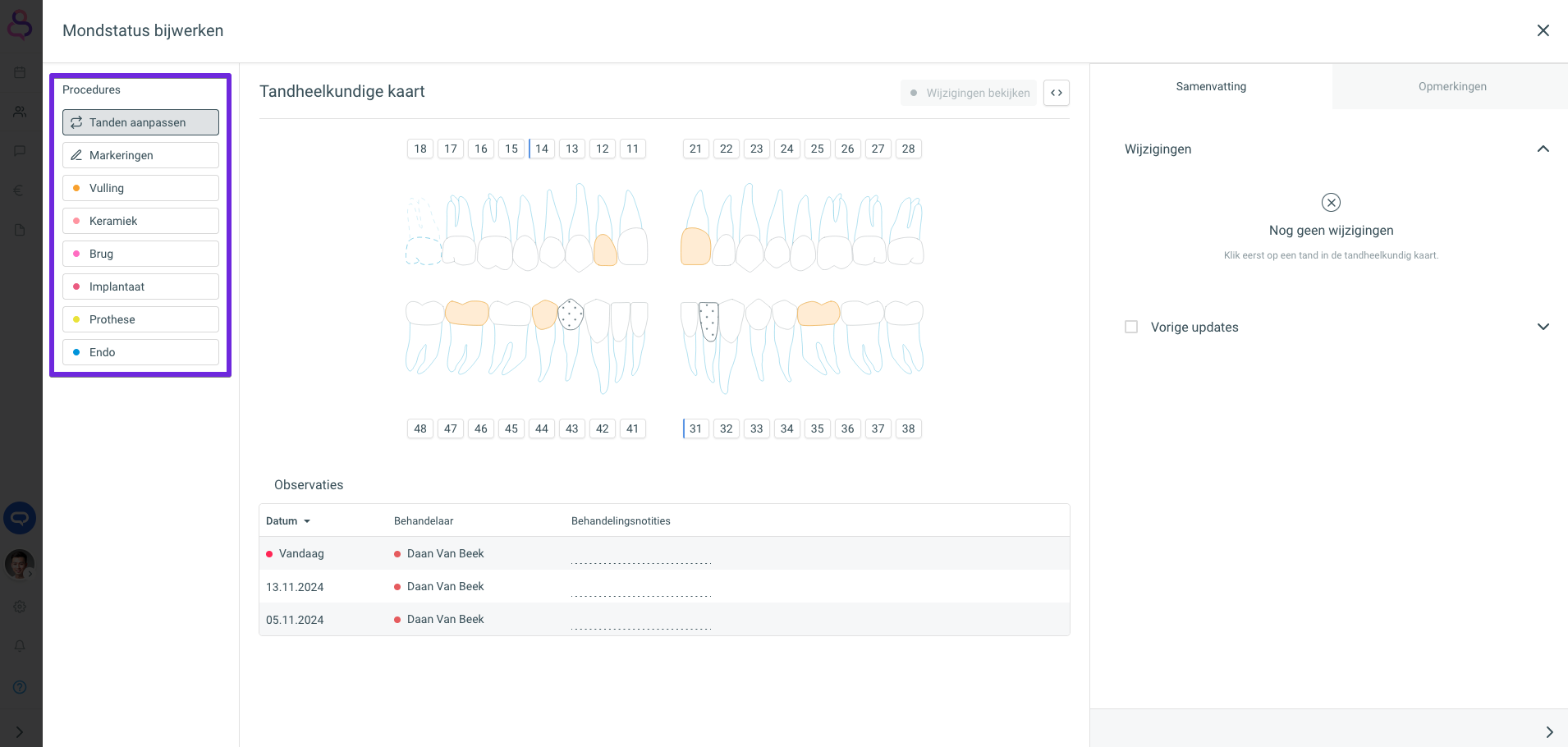
A new panel opens with a dental chart where you can make the necessary changes. On the left of the screen, you see the possible procedures and choose the action you want.
![](https://knowledgebase.crossuite.app/galleryDocuments/edbsn5a3a949ff8c2e22950b215c993784b9f71cba8c0087152b071135e3020c40bd9506520fa749d474437facac167e8d2cd826fa3a2e0f9f6030126b5ee62cf7408?inline=true)

## Adapt teeth

Use the **\[🔁 Adapt teeth\]** procedure to:

1.  remove teeth from the dental chart,
    
2.  swap teeth from the permanent dentition with teeth from the primary dentition, or vice versa,
    
3.  indicate that the tooth is impacted,
    
4.  indicate that only the root remains,
    
5.  indicate that only a root fragment remains.
    

For wisdom teeth, there is an extra option to remove all wisdom teeth from the mouth in one action.

<table style="min-width: 50px;"><colgroup><col style="min-width: 25px;"><col style="min-width: 25px;"></colgroup><tbody><tr><td colspan="1" rowspan="1"><img src="https://knowledgebase.crossuite.app/galleryDocuments/edbsn5a3a949ff8c2e22950b215c993784b9fe9f33c4b3c68b251c03fc0f27248a8a223174f22a1ffa076a9ebbe9277c632ff05a4528c214eb9e0725ccf49f4fc1b71?inline=true" width="640" style="max-width: 640px; height: auto;"><p>Tooth selected</p></td><td colspan="1" rowspan="1"><img src="https://knowledgebase.crossuite.app/galleryDocuments/edbsn5a3a949ff8c2e22950b215c993784b9f2cee8f33b4b933895d995bfd0da163d4487444ffe73b9ab6d45a82e9c17b21c63e967355769527ca52b8a640b85d5498?inline=true" width="640" style="max-width: 640px; height: auto;"><p>Wisdom tooth selected</p></td></tr></tbody></table>

## Markings

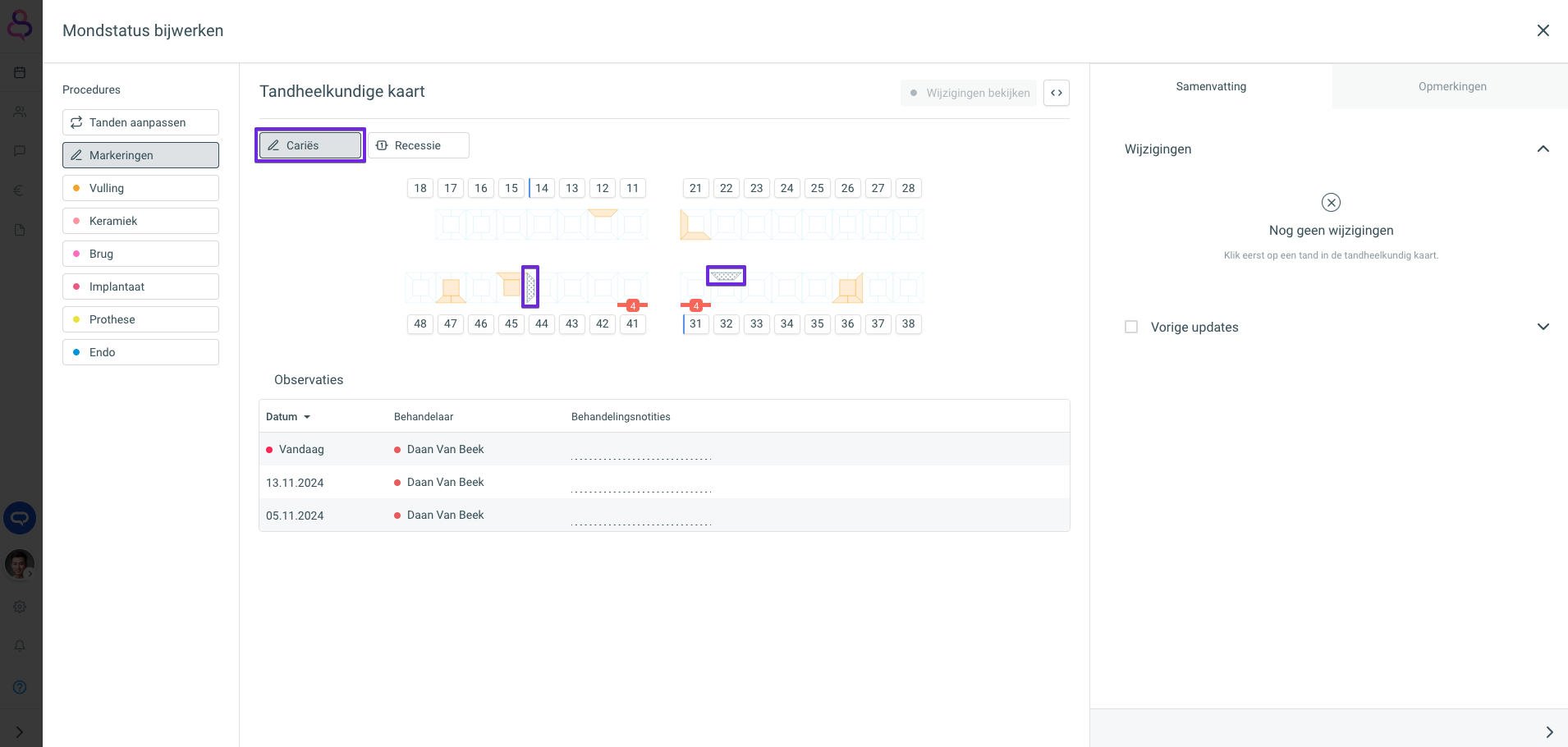
With **\[🖉 Markings\]** you can mark **\[🖉 Caries\]** or show where there is a **\[Recession\]**.

### Caries

To mark caries, click one or more of the possible facets on the tooth concerned. The marked facets are shown filled with small black dots.
![](https://knowledgebase.crossuite.app/galleryDocuments/edbsn5a3a949ff8c2e22950b215c993784b9fe3d09b045b10b9bd086d23298caa4bd56ae430ed8e364adfff56a1fb86f370cfa4d457c7eef52aceb9c5c131b3a77bc6?inline=true)

### Recession

To indicate a recession, click the inner or outer side of the tooth and set the degree of recession at that spot using the dropdown menu that appears.

<table style="min-width: 50px;"><colgroup><col style="min-width: 25px;"><col style="min-width: 25px;"></colgroup><tbody><tr><td colspan="1" rowspan="1"><img src="https://knowledgebase.crossuite.app/galleryDocuments/edbsn5a3a949ff8c2e22950b215c993784b9f200c33c79a85a7fab6843f6a3162147ee777457121d3a757be5e43ca18747f353f9f0f23383efab1e3dba61b230fc3e5?inline=true" width="640" style="max-width: 640px; height: auto;"><p>Setting the degree of recession</p></td><td colspan="1" rowspan="1"><img src="https://knowledgebase.crossuite.app/galleryDocuments/edbsn5a3a949ff8c2e22950b215c993784b9f50556ac38a16cb069d30b861d148f35331814c9ff93a3922bc7d1f025de6ce0ee95170f44931ef2259713aca81954bf3?inline=true" width="640" style="max-width: 640px; height: auto;"><p>Recessions marked</p></td></tr></tbody></table>

## Filling

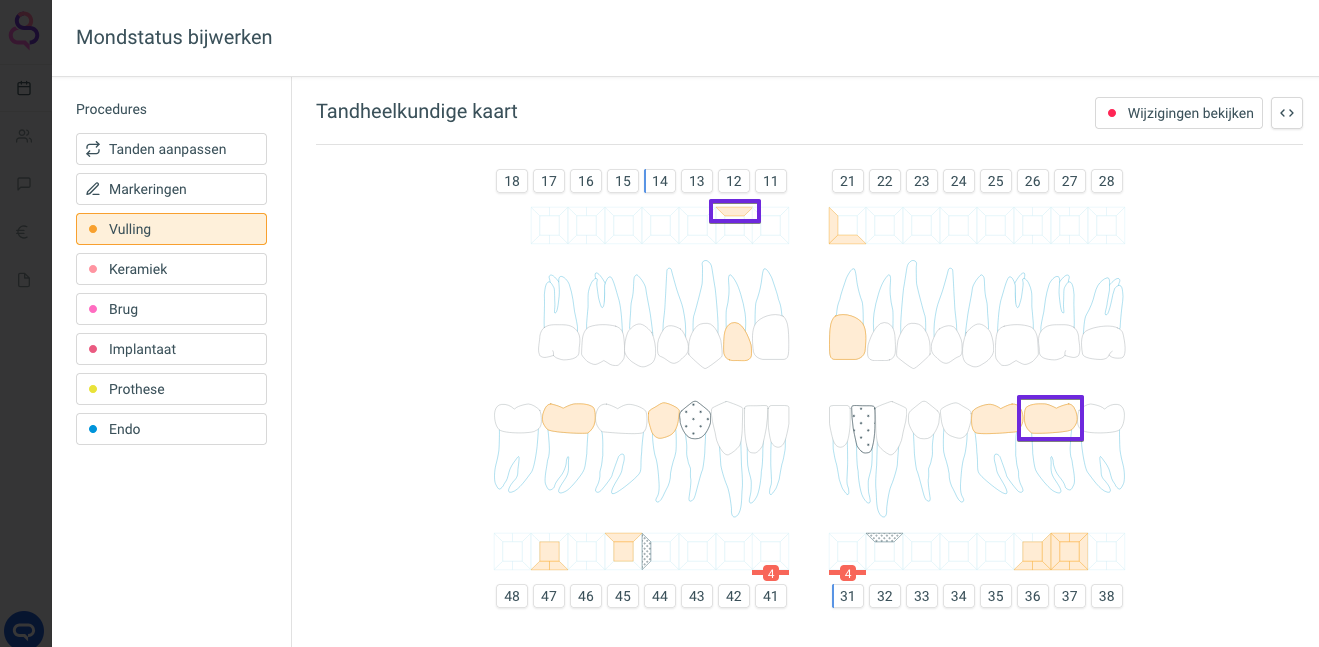
To mark all facets as filled with one click, click the tooth in the dentition. To mark one or a few facets as filled, click the facets you want in the diamonds per tooth above and below the dentition.
![](https://knowledgebase.crossuite.app/galleryDocuments/edbsn5a3a949ff8c2e22950b215c993784b9f5783e1c89b4fc916ecdb2d592ee70a8da5c7508b11cd0b63fcc28128cb5054e8271b8fa06cef8c9f432227b260d30c18?inline=true)

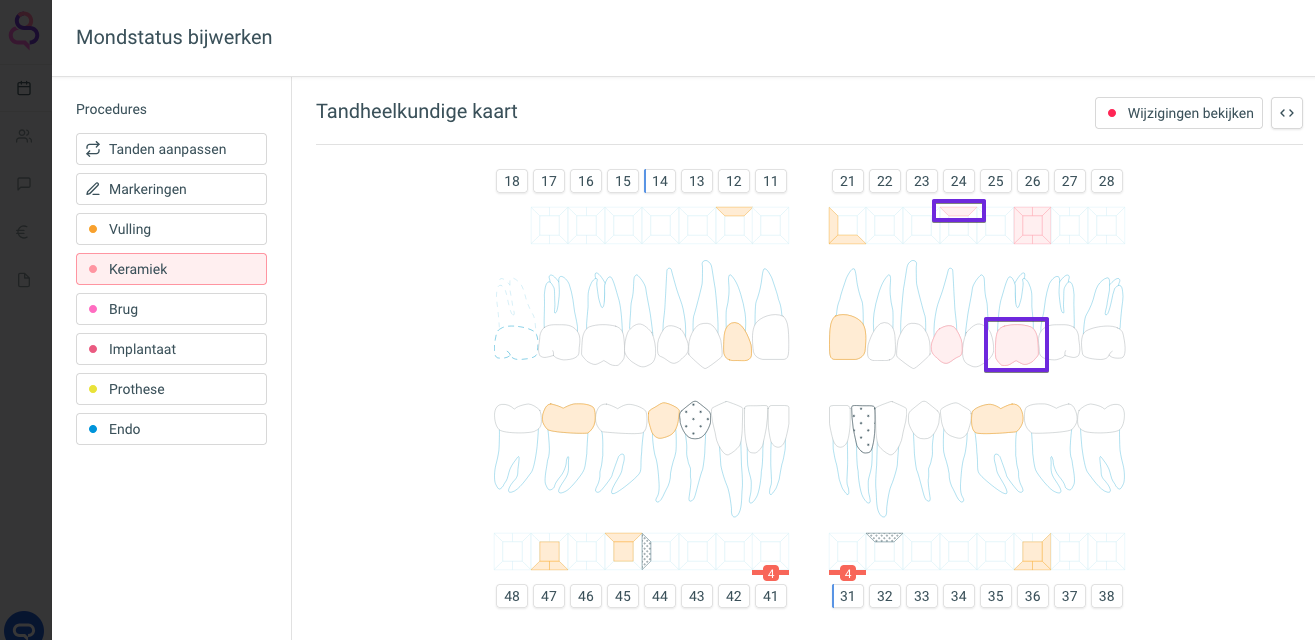
## Ceramic (crown work)

For ceramic or crown work, the same options apply as for fillings. To mark a whole tooth, click the tooth in the dentition. To mark one or a few facets, click the facets you want in the diamonds per tooth above and below the dentition.
![](https://knowledgebase.crossuite.app/galleryDocuments/edbsn44ca3592042ae63621fbac38e1104b5a4a27de5365ae4ae0b77f787ecb9e6ed4d10e6c8b243fca0e324da754615efea954b20cd71f41e1da07ad740f7c0cebc5?inline=true)

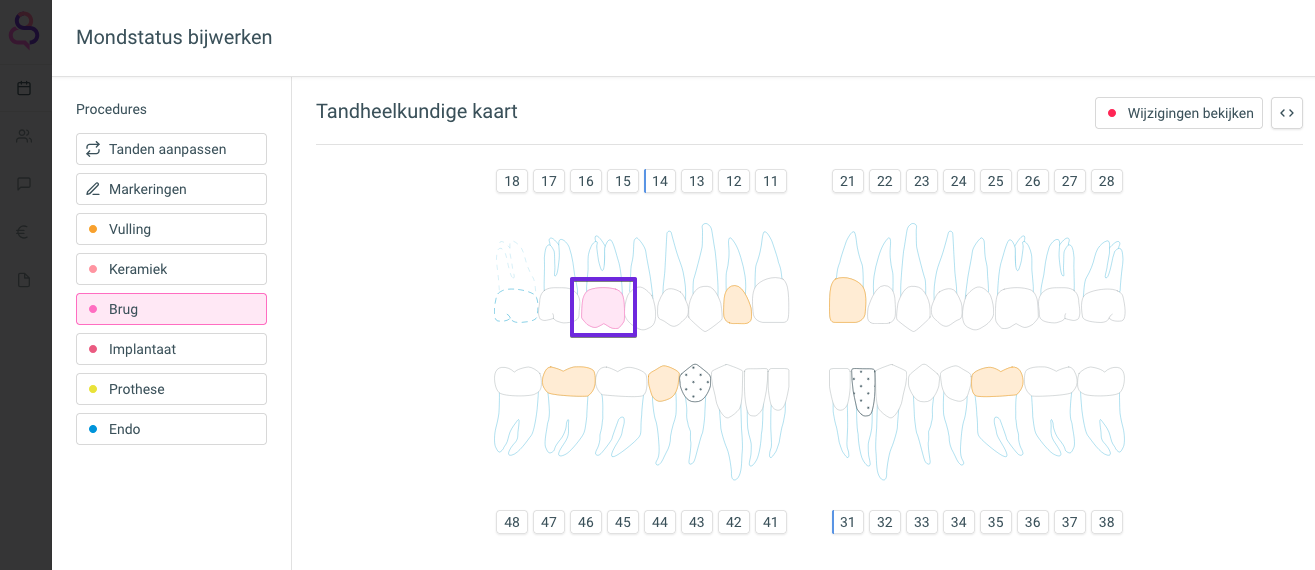
## Bridge (bridgework)

You indicate a bridge or bridgework by clicking the tooth or teeth in the dentition where it is present.
![](https://knowledgebase.crossuite.app/galleryDocuments/edbsn44ca3592042ae63621fbac38e1104b5adb78b02d501195b8e52f3a6e4ff7a0ef70c2bac6a9afd52a8c6a5d8a7d246191df2648c7155f305229d5ee549d6dc5b2?inline=true)

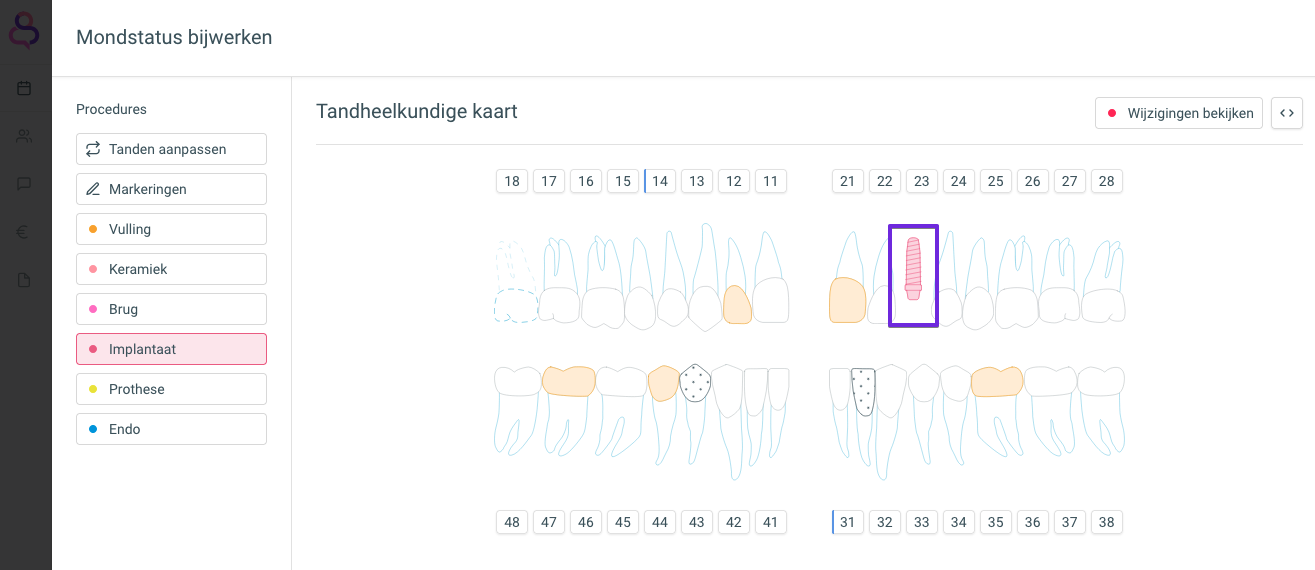
## Implant

To indicate where any implants are, click the tooth or teeth concerned.
![](https://knowledgebase.crossuite.app/galleryDocuments/edbsn44ca3592042ae63621fbac38e1104b5aaeb0f7f8d407668c7749c8702ed64ab66dbd3bf636bf39245182c288077529c2bd1c5e4440aa2990e296366b856add93?inline=true)

## Prosthesis

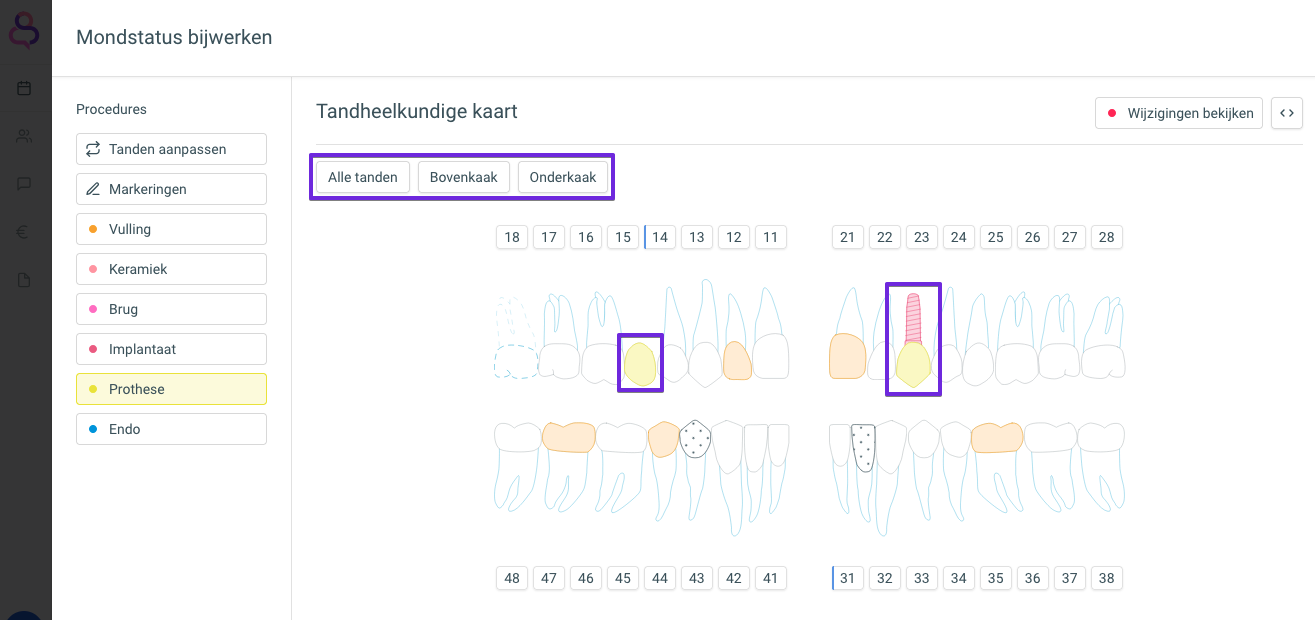
If the patient wears a prosthesis, you can easily indicate this with the preselections at the top: **\[All teeth\]**, **\[Upper jaw\]** or **\[Lower jaw\]**.  
For smaller prostheses, select the tooth or teeth concerned. Implants marked earlier can also be selected for a prosthesis.
![](https://knowledgebase.crossuite.app/galleryDocuments/edbsn44ca3592042ae63621fbac38e1104b5af088af9fb2fca88e98dfb8703de40d49f61c8e198ba4c735d43d7937909ed5a457c69c73898d13c5b5b37843e98d633a?inline=true)

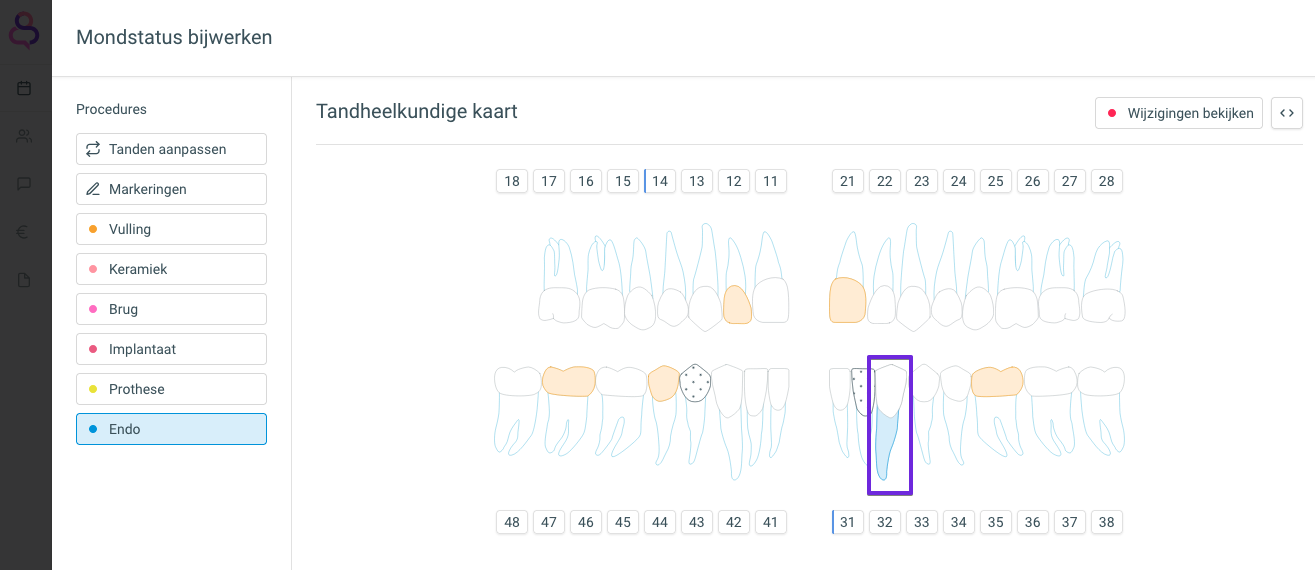
## Endo

To indicate endodontic treatment, click the tooth or teeth where it took place.
![](https://knowledgebase.crossuite.app/galleryDocuments/edbsn44ca3592042ae63621fbac38e1104b5a68cd5ea0bd73be69bd912925c70edd98fb36243a8f8dcf0ab68fdfd992021cc4fed657990038817c4049ff5dc54d7454?inline=true)
