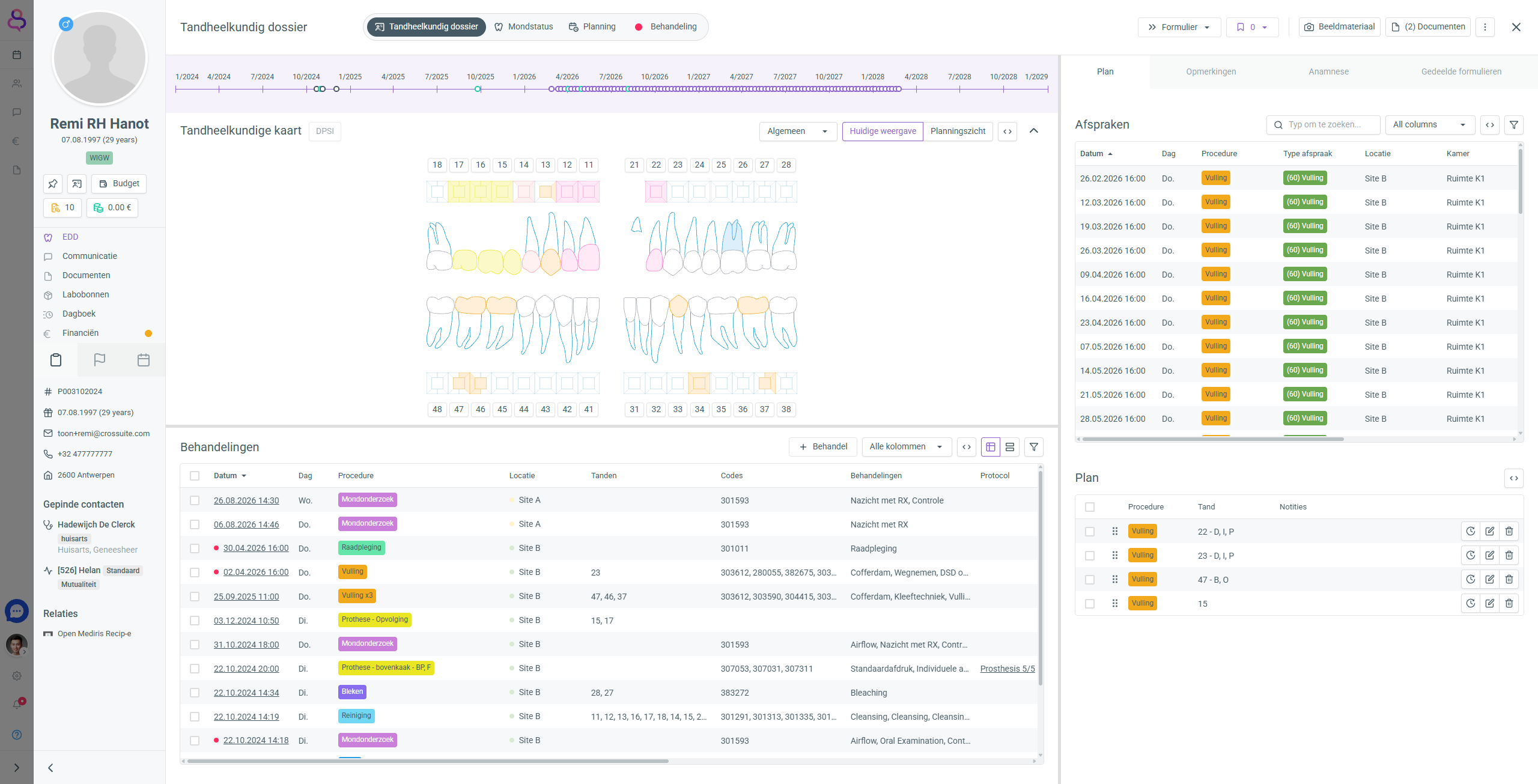
On the left side of the record, you'll find the patient details. This is a brief overview of some relevant patient information. Details that haven't been filled in are marked with an exclamation mark. You can easily add this information by clicking on it.
Click the flag icon ⚐ to display the flags linked to the patient.
Click the calendar icon 🗓 to display the patient's appointments.
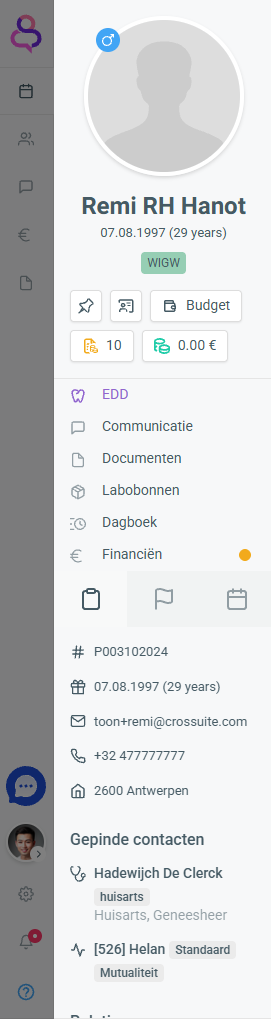
At the top of the file, you’ll find a timeline showing treatments already performed and appointments planned for this particular patient. Hover over one of the dots to see the treatment performed or the appointment planned.
The dental chart shows both the current oral status and the planned procedures for your patient. In the [Current view] you can see previous procedures or markings you made during an oral examination. In the [Planning view] you can see the patient’s planned procedures.
Current oral status (Current view) | Planning view |
You can find more information about the dental chart and how to update the oral status here.
Under treatments, you can see all updates made to the oral status (observations) and treatments performed (oral examination, consultation, procedural treatment, orthodontics). You can also add treatments here using the [+ Treat] button or change the table contents by selecting a different view from the dropdown menu.
The plan contains two parts: the patient's already scheduled appointments and the procedures that still need to be performed.
When you hover over an appointment, the [+ Treat] button appears. Use it to process the appointment and proceed to enter your treatment.
In the plan, you can see the procedures planned for the patient. From here, you can easily add them to the waiting list using the ⟳ button, then quickly move on to scheduling an appointment.
You can find more information about the patient's plan here.
The notes contain important (medical) information about the patient that is always available to you and your colleagues.
Find more information about managing the patient's comments here.
In the medical history section, you'll find the questionnaires completed by your patient. You can review them or easily add to them where needed.
Under shared forms, you'll see the questionnaires that have not yet been completed by the patient. Use the [+ Share form] button to share relevant forms with your patient.
