Click your profile picture > [Billing] at the bottom left.
The [Invoices] tab shows a history of your invoices. Click [⤓] to download an invoice.
On the right, you see an overview of your current subscriptions, payment details and current costs:
Billing estimate:
The amount for the current subscription settings
Billable usage:
The amount for extra services such as AIQU and extra storage space
Billing status:
Here you see whether the practice still has unpaid invoices with Crossuite BV
Billing details:
These details are used to invoice your Crossuite subscriptions
Default payment method:
The payment method set for your invoices
Click the [Usage & quota] tab at the top.
Here you see an overview of the storage space used and the related running costs.
Click [Usage] to view the storage space used in more detail.
Here you see an overview of all your documents and the free storage space. Click the icons to the right of a document to edit it, send it by email, download it, delete it or open the patient record.
Click the [Payment methods] tab at the top.
Here you see an overview of the saved payment methods and your default payment method.
To add a payment method, click the [+Add payment method] button.
Select the payment method you want, enter the correct details and finally click [Confirm].
Once you've added a new payment method, you can set it as the default payment method with the [Make default] button if you want.
By default, your Crossuite invoices are sent to your practice's email address. You set this via your profile picture at the bottom left > [Edit practice] > [Practice info].
If you have a separate email address for your accounting or invoicing that differs from your regular practice email address, you can have your invoices sent there.
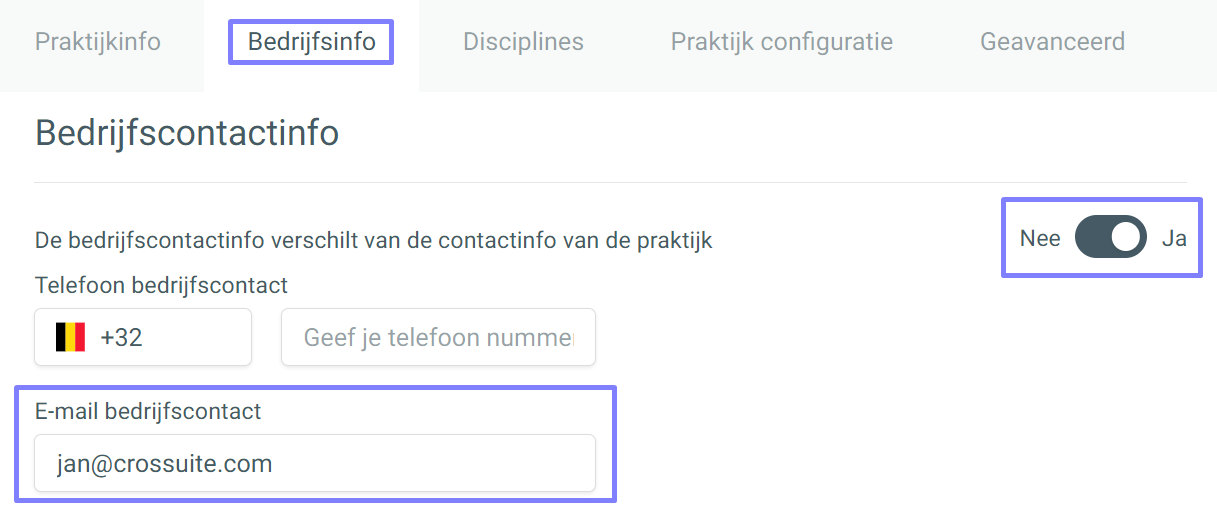
Go to your profile picture at the bottom left > [Edit practice] > [Business info]. Set the toggle to 'Yes' to indicate that your business details differ from your practice details, and enter the email address you want there. Your invoices will then be sent to this address.
In that case, you don't set the email address for your invoices via Practice info or Business info. You do it via your profile picture at the bottom left > [Subscription] > [Payment methods]. You enter the email address when you add or change your payment method. Want to receive your invoices at another address later? Then change your payment method and enter the new email address there.
Please note: Only the practice administrator can change the practice and business details.
